Shortlisting and rejecting
Once a match has run, the Shortlisting screen shows the ranked candidates on the left and the selected candidate's breakdown on the right.
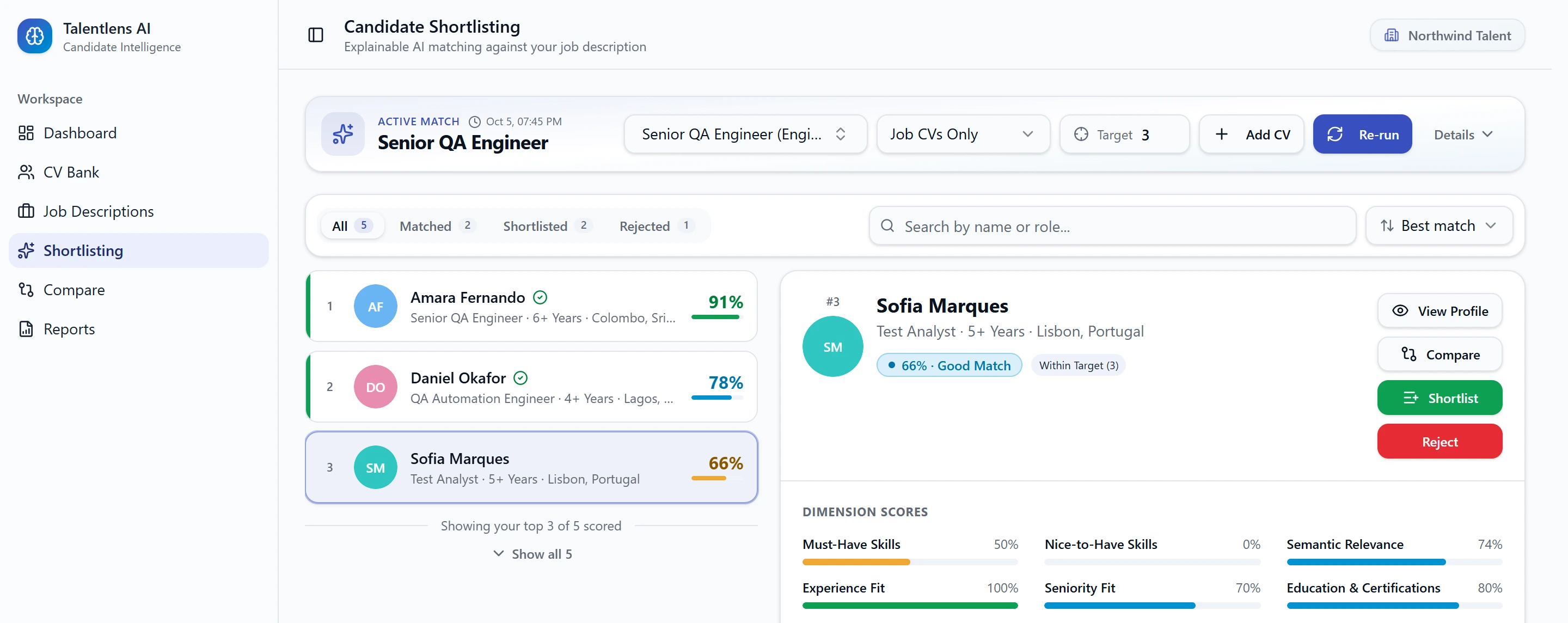
The target line
The list is cut at your shortlist target. If your target is 10, you see the top 10, with a note of how many more are below.
- Select Show all to see everyone who was scored.
- Change the target at the top of the screen and the line moves straight away. Nothing is scored again.
Candidates below the line are still scored and one click away. The target only decides how many you look at first.
Marking a candidate
Select a candidate, then select Shortlist or Reject in their panel.
| Status | Meaning |
|---|---|
| Matched | Scored, and not yet decided |
| Shortlisted | You want to take this candidate forward |
| Rejected | You have ruled this candidate out |
To change your mind, select Reset Status. The candidate goes back to Matched and the two buttons return.
A candidate inside your target shows a Within Target label.
Finding candidates in the list
- The tabs All, Matched, Shortlisted and Rejected filter the list and show a count for each.
- Search by name or role narrows the list as you type.
- Sort by Best match, Name (A–Z) or Experience.
If the list is empty with the message "No candidates match", clear the search or switch tab.
From here
- View Profile opens the candidate's full profile.
- Compare adds the candidate to a side-by-side comparison.
- Your shortlisted candidates appear in the job's report.
Re-running a match updates the scores. Candidates you shortlisted or rejected keep that status.