Candidate profiles
A candidate profile is the structured version of a CV. Open one by selecting a candidate in the CV Bank, in a shortlist, or on the Compare screen.
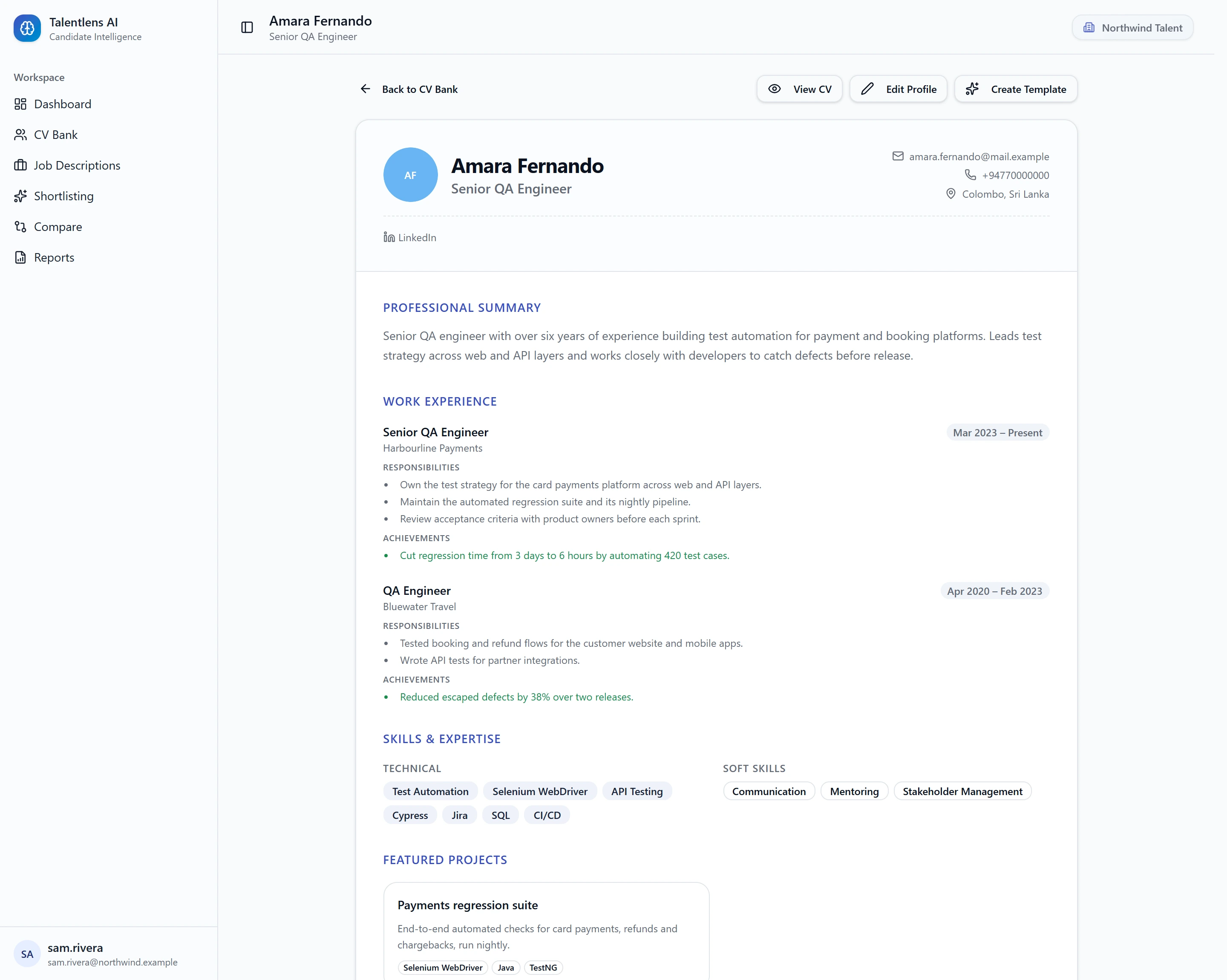
What a profile contains
- Professional Summary
- Work Experience, with dates, responsibilities and achievements
- Skills & Expertise, split into technical and soft skills
- Featured Projects
- Education
- Certifications
- Languages
- References
Sections with nothing in them are left out. If the CV included links to the candidate's LinkedIn, GitHub or portfolio, they appear at the top of the profile.
Dates are shown as written on the CV. If the CV gives a month, you see "Mar 2022 – Feb 2025". If it gives only years, you see "2021 – 2023". A job with no end date is shown as continuing to the present.
See the original CV
Select View CV to open the original PDF in a new tab. The link is created when you ask for it and stops working after a short time, so open it again from the profile if it expires.
"Needs Review"
When a detail could not be confirmed automatically, the profile carries a Needs Review flag, with the message "Some details could not be confirmed automatically. Please check the following", followed by the details to check.
This usually means something was missing from the CV, such as a phone number or a current role. Check the details against the original CV and correct them.
Editing a profile
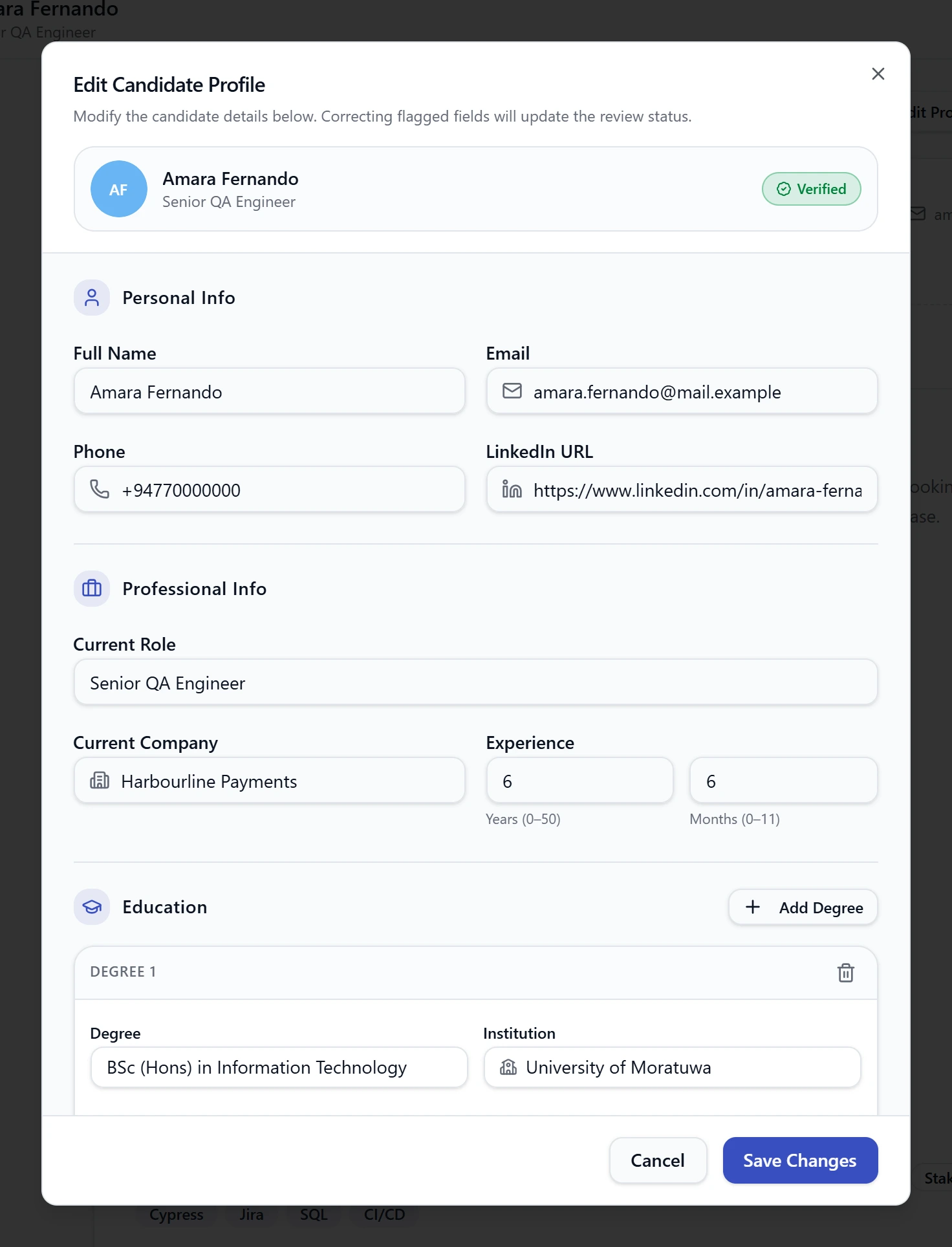
- Select Edit Profile.
- Change what you need to:
- Personal Info: full name, email, phone, LinkedIn URL
- Professional Info: current role, current company, and experience in years and months
- Education: degree, institution, Start Year and End Year
- Select Save Changes.
A few things worth knowing:
- Email, phone and LinkedIn URL cannot contain spaces.
- For a degree still in progress, tick Currently studying / in progress instead of choosing an end year.
- If a CV gave only one year for a degree, it is treated as the year the degree was completed and appears under End Year.
- Select Add Degree to add another qualification.
Once the flagged details are filled in, the profile changes from Needs Review to Verified.
If you edit a candidate after they were matched to a job, their score for that job may be out of date. The Shortlisting screen tells you, and offers Re-run Matching.
Other actions
- Create Template builds a version of the CV you can forward to a client. See Creating a forwardable CV.
- The back link at the top returns you to where you came from: the CV Bank, a shortlist, the comparison or the dashboard.