Reports
A report summarises the outcome of matching for one job: who was shortlisted, how they scored, and what they are missing. It is the thing to hand to a hiring manager.
Reports are created for you. There is one for every job that has a match run.
Find a report
- Open Reports.
- Use Search reports by job title if you have many.
If the screen says "No reports yet", create a job description and run a match first.
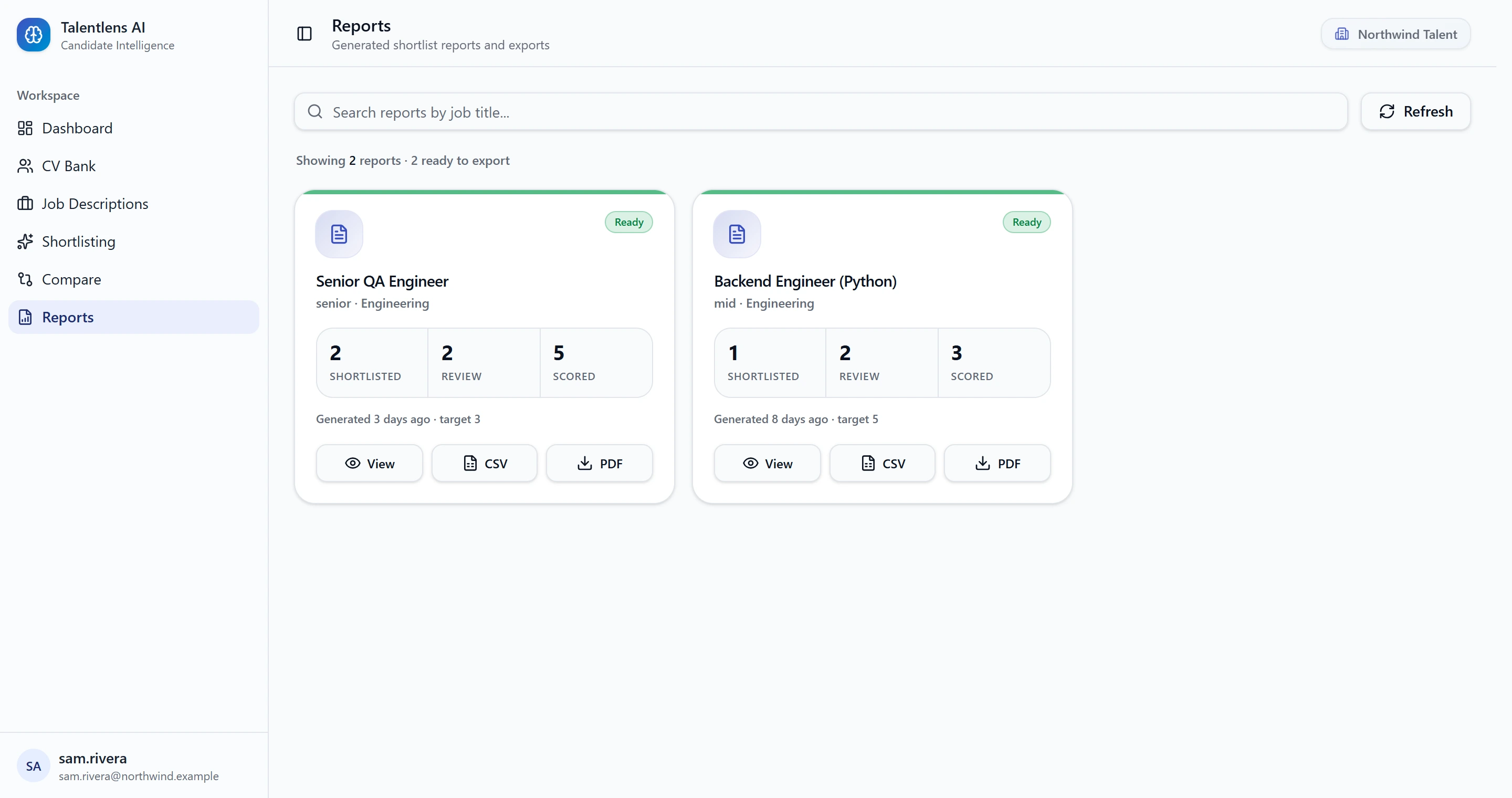
What a report card shows
| On the card | Meaning |
|---|---|
| Ready | The report has shortlisted candidates and can be exported |
| Shortlisted | How many candidates you shortlisted |
| Review | How many are still undecided |
| Scored | How many candidates were scored in total |
| Scoring outdated | The job or its candidates changed since the match ran |
If you see Scoring outdated, re-run the match before you send the report to anyone.
Open a report
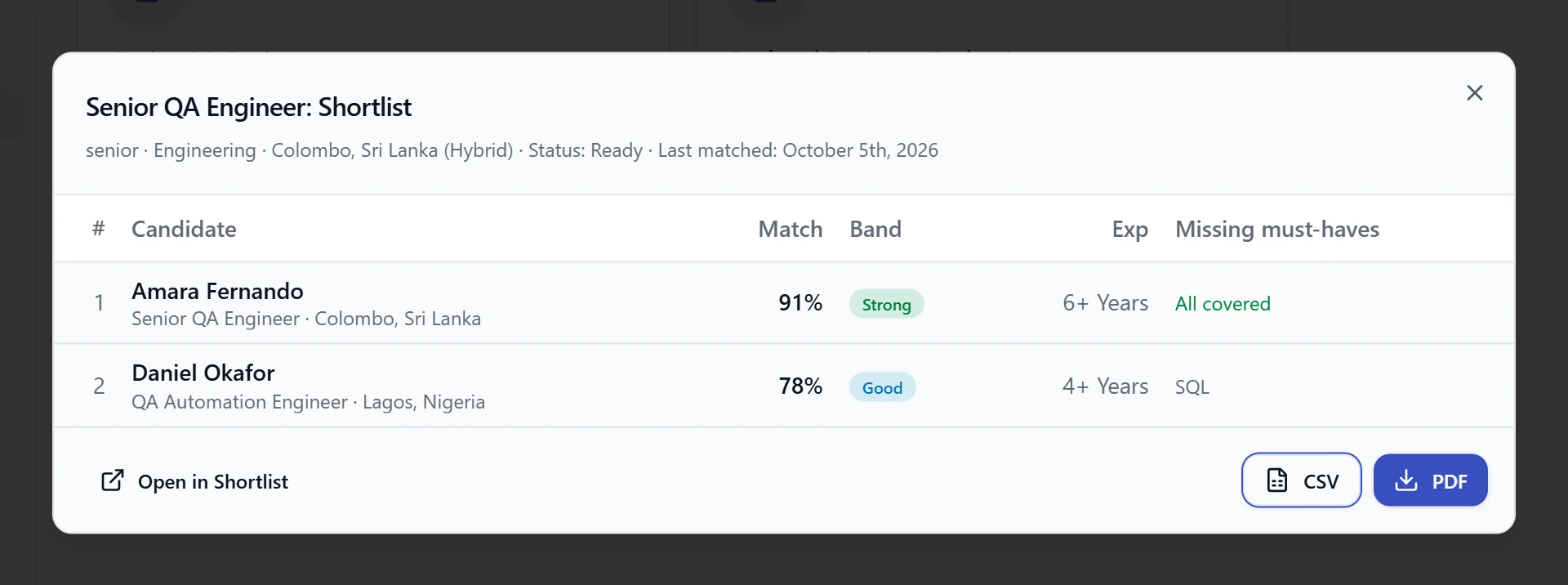
Select View. The report lists each candidate you shortlisted, best match first, with:
| Column | Meaning |
|---|---|
| Candidate | The candidate's name |
| Match | Overall match score |
| Band | Strong, Good, Partial or Weak. See Reading the scores |
| Exp | Total experience |
| Missing must-haves | Essential skills the candidate lacks, or All covered |
Select Open in Shortlist to go back to the job's shortlist.
Export
| Button | Result |
|---|---|
| CSV | A spreadsheet file you can open in Excel or Google Sheets |
| Opens your browser's print dialog. Choose "Save as PDF" as the printer |
Use Refresh on the Reports screen to pick up the latest decisions before exporting.