Comparing candidates
The Compare screen puts up to five candidates side by side for one job, so you can see where each is stronger.
Before you start
The job needs a match run. If it does not have one, the screen says "No match run yet" and offers Go to Shortlist. See Running a match.
Build a comparison
- Open Compare.
- Choose the job under Compare Candidates For.
- Select Add candidate and pick a candidate. You can search by name.
- Repeat for up to five candidates.
You can also start from the Shortlisting screen: select a candidate and choose Compare.
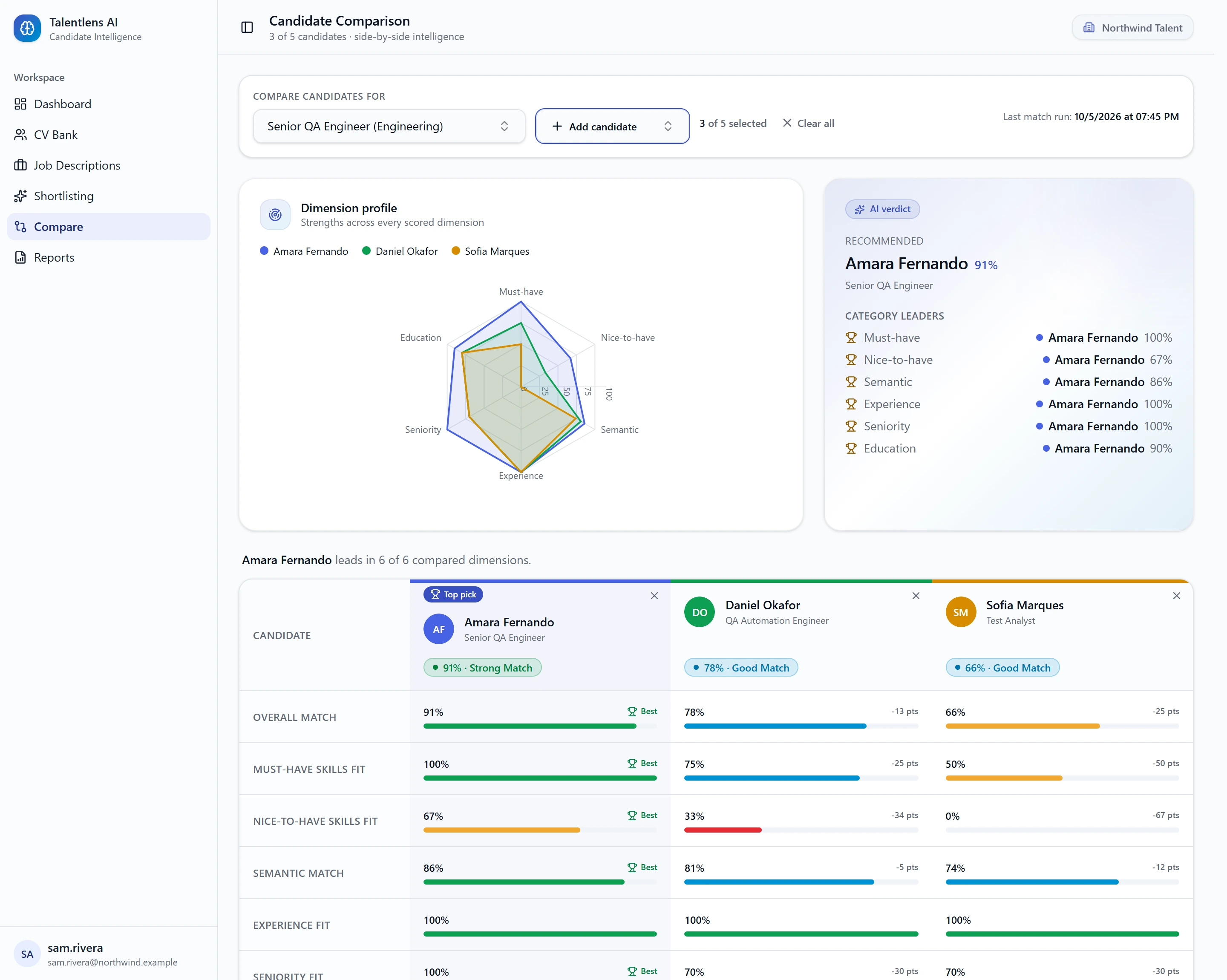
To start again, select Clear all.
Reading the comparison
| Area | What it shows |
|---|---|
| The grid | Every part of the score for every candidate, in rows you can read across |
| Dimension profile | Each candidate's strengths across all scored parts |
| Category leaders | Who scores highest on each part |
| AI verdict | The candidate marked Recommended, and the strengths behind that pick |
The parts are the same six explained in Reading the scores.
The header shows when the match last ran. If it was a while ago, or the job or the candidates have changed since, re-run the match first.
The recommendation
Recommended marks the candidate with the strongest overall case, and shows why. It is a suggestion. The grid is there so you can check it and choose differently.
Shortlisting from here
You can shortlist a candidate directly from the comparison.