Running a match
Matching scores candidates against a job description and ranks them. You run it from the Shortlisting screen.
Before you start
You need at least one job description and some CVs in your CV Bank.
Run it
-
Open Shortlisting.
-
Select the job at the top of the screen.
-
Choose who to score:
Option Scores Whole CV Bank Every candidate your company has on file Job CVs Only Only the candidates whose CVs were uploaded for this job -
Select Run AI Matching.
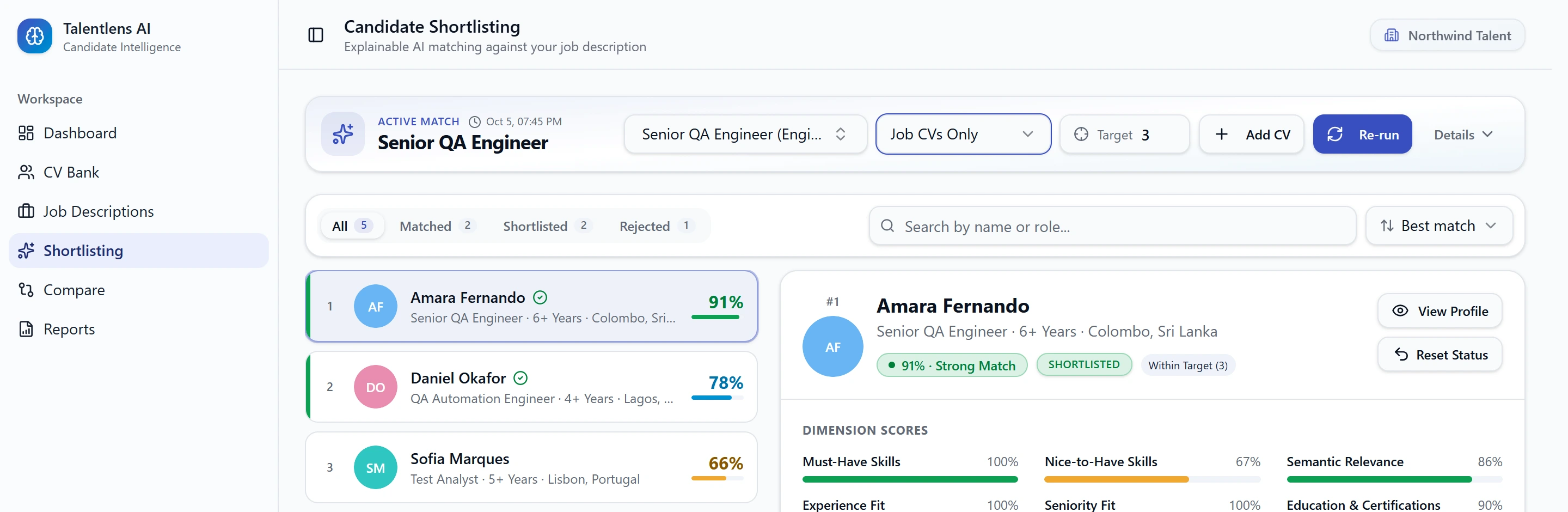
While it runs you will see "Analyzing candidate profiles...". When it finishes, the ranked list appears, best match first.
Which option should I choose?
- Choose Job CVs Only when you want to rank the people who applied.
- Choose Whole CV Bank when you want to find anyone you already know who would suit the role, including people who applied for something else.
Check what was scored
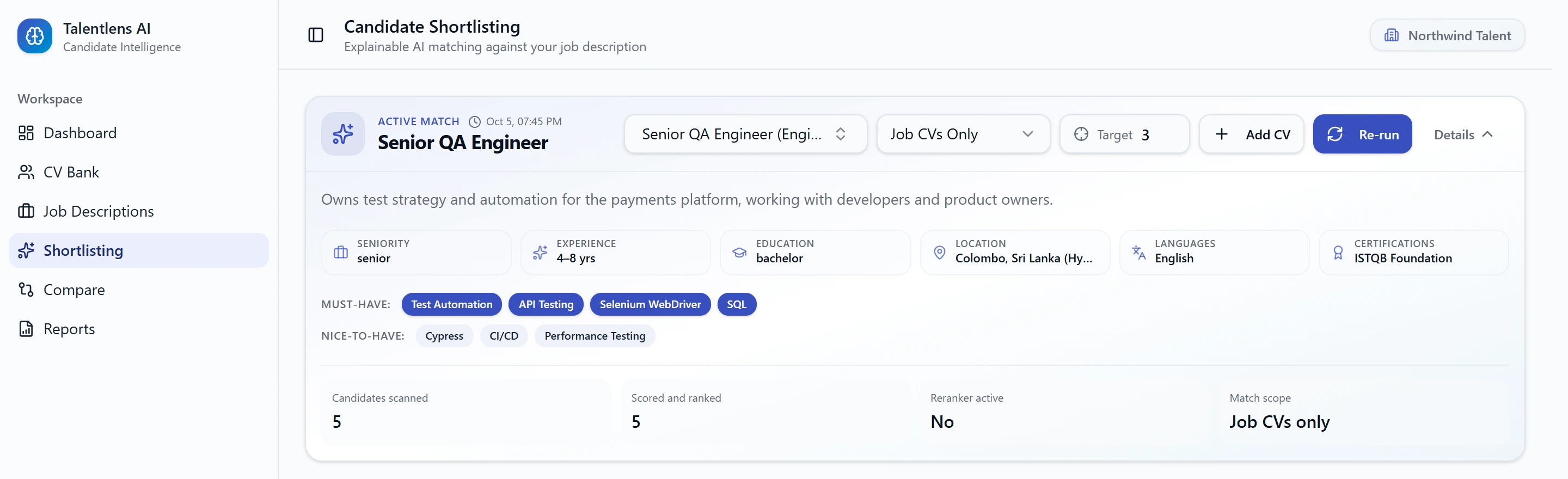
Select Details to see the facts about the run:
| Detail | Meaning |
|---|---|
| Candidates scanned | How many candidates were considered |
| Scored and ranked | How many were given a score |
| Match scope | Whether it used the whole CV Bank or the job's CVs only |
The Details panel also lists the job's requirements, so you can see what candidates were scored against.
When to run it again
Scores are a snapshot. The screen tells you when they no longer reflect the current facts:
| Message | Why | What to do |
|---|---|---|
| Scoring is out of date | The job description changed after candidates were scored | Select Re-run |
| Candidate profiles updated | One or more candidates were edited after they were scored | Select Re-run Matching |
| Results not saved | Matching finished but the results could not be saved | Check your connection and run the match again |
New CVs uploaded for a job are scored automatically shortly after they finish processing, so you do not need to re-run by hand each time an applicant is added.
If you see "More applicants existed than this run could score", the job has more applicants than a single run can rank. Contact support.