Managing job descriptions
The Job Descriptions screen shows each role as a card.
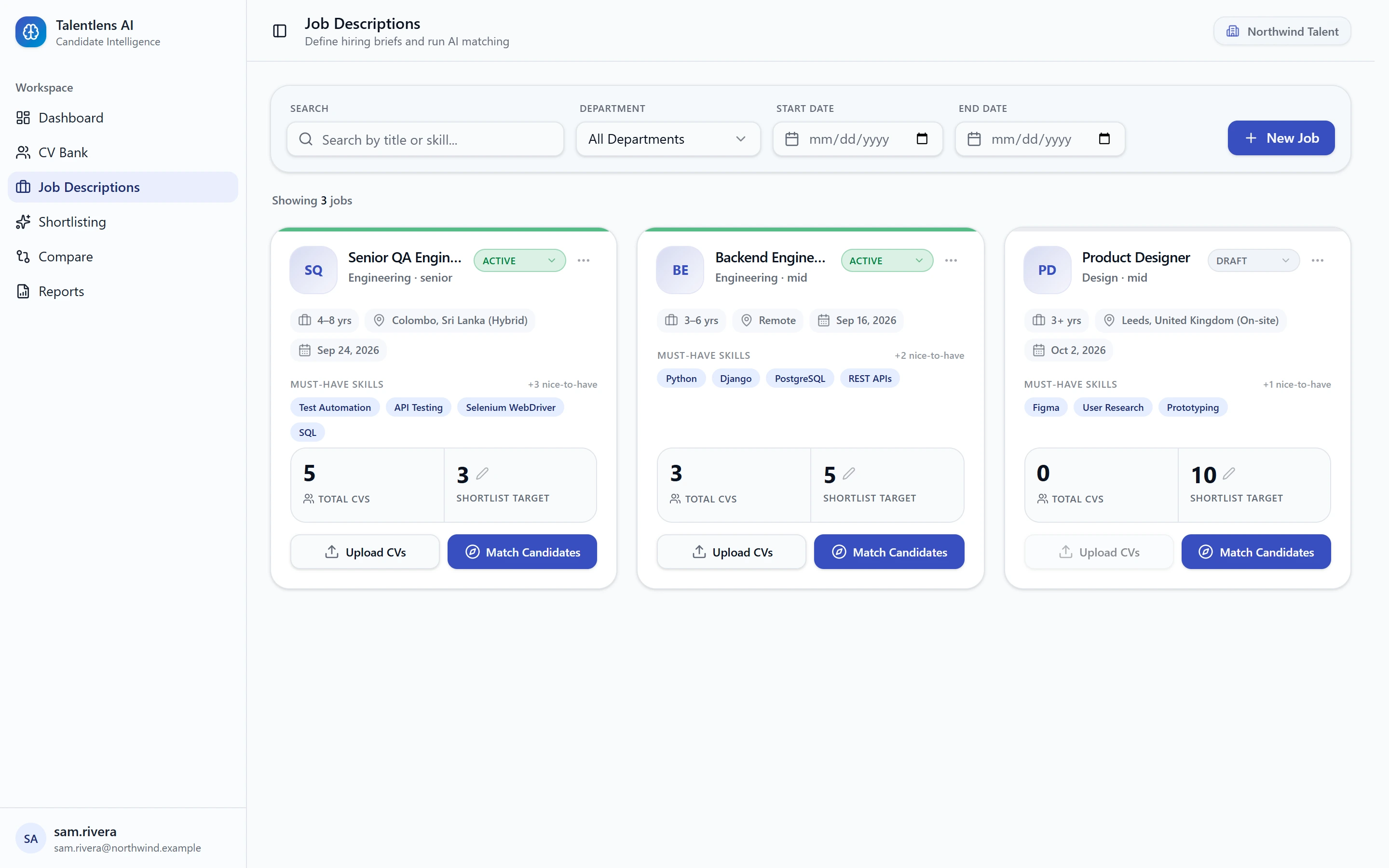
What a job card shows
| On the card | Meaning |
|---|---|
| Status | Draft, Active or Closed, shown as a dropdown you can change |
| Experience, location and date | The experience range, the location and when the job was created |
| Must-have skills | The essential skills for the role |
| Total CVs | How many CVs have been uploaded for this job |
| Shortlist target | How many candidates you want to review |
Finding a job
- Search by title or skill to find a role by name or by a skill it asks for.
- Department shows only one department's roles.
- Start Date and End Date limit the list to jobs created in that period.
- Clear All removes the filters.
Editing the requirements
- On the job's card, open the ⋯ menu and select Edit Requirements.
- Change what you need to. The form is the same one you used to create the job.
- Select Confirm & Save.
If candidates were already matched to this job, their scores were calculated against the old requirements. The Shortlisting screen shows Scoring is out of date and offers Re-run.
Changing the status
Open the status dropdown on the card and choose Draft, Active or Closed. Closed jobs keep their match results and reports. Upload CVs is available only while a job is Active.
Changing the shortlist target
Select the pencil icon next to Shortlist target on the card, type the new number and save. Nothing is scored again. The target only moves the line in the ranked list.
Adding applicants
Select Upload CVs on the card to add CVs for this job. See Uploading CVs.
Matching
Select Match Candidates on the card to open Shortlisting with this job selected.
Deleting a job
Open the ⋯ menu on the card, select Delete Job Description and confirm. Deleting a job removes its match results, your shortlist decisions for it and its report. The candidates stay in your CV Bank. This cannot be undone.